
How to Set an Auto-Approval Window for Custom Shopify Orders Without Upsetting Customers
How to pick the right auto-approval window for your custom Shopify orders, where to disclose it, and which products should never use one.
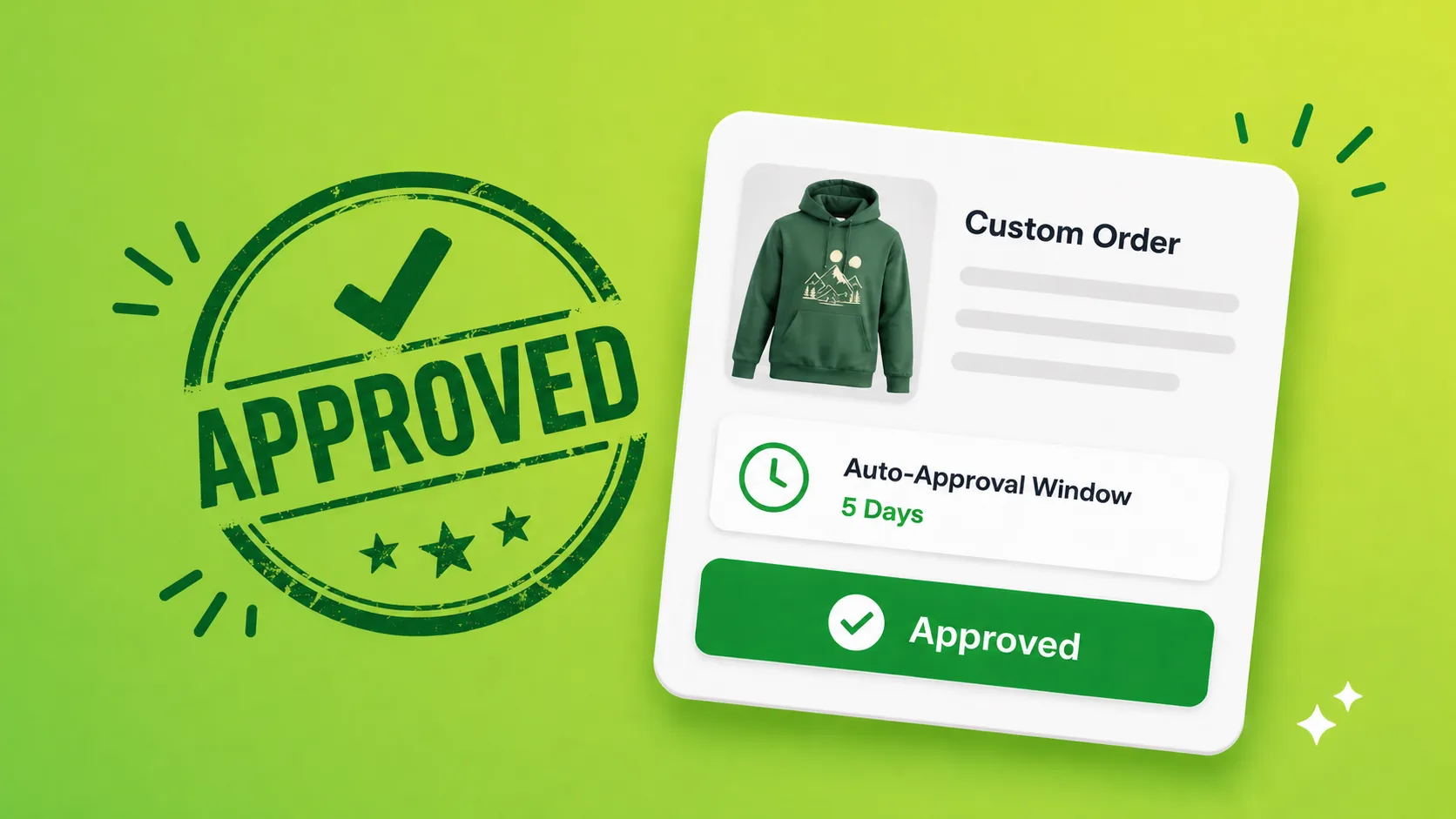
How to Set an Auto-Approval Window for Custom Shopify Orders Without Upsetting Customers
The orders that just sit there
You sent the proof on Tuesday. By the following Tuesday, the customer has not opened it, has not replied to your reminder, and is not answering email. The order is sitting in your dashboard at "design ready" while you decide whether to ship the original design, refund, or wait another week.
Auto-approval is the policy that handles this case for you. It says: if the customer has not responded within a defined window, the proof is treated as approved and the order moves to production. Set right, it ships orders that would otherwise rot. Set wrong, it ships orders the customer was about to ask for changes on.
This post is about getting it right.
What an auto-approval window is actually doing
An auto-approval window is a timer attached to each "design ready" proof. When the timer expires with no response from the customer, the system marks the proof as approved on the customer's behalf, and your fulfillment process picks the order up the same way it would for any other approval.
The key word is "expires with no response." Customer feedback, a revision request, or an explicit rejection should all reset or cancel the timer. Auto-approval is not aggressive in those cases, because the customer is engaged. It only fires when the customer has effectively gone silent.
The other key fact is that auto-approval is a policy decision, not a technical default. The right window for one product is the wrong window for another, and the same merchant often needs different policies for different SKUs.
Picking your window: 3, 5, or 7 days
For most stores, the question is not "auto-approval yes or no" but "how long do I wait." A few rules of thumb:
- 3 days suits low-stakes, high-volume custom items where the customer is buying something fast and disposable. Custom mugs with a name on them, single-line engraved items, dog tags. The customer made a small decision; they do not expect to spend a week reviewing it.
- 5 days is the sensible middle for most custom Shopify products. It is long enough to absorb a weekend, a missed inbox check, and one ignored reminder. Personalized signs, custom T-shirts, photo gifts, simple stationery.
- 7 days is for considered purchases where the customer might genuinely want to think it over. Multi-page menus, business cards, packaging proofs, anything with copy the customer will be reading carefully.
- Longer than 7 days is rarely worth it. By that point the customer is either going to come back or they are not, and stretching the window only delays the order.
If you are unsure, start at 5 days. You can shorten it once you see how often customers respond inside it.
Products that should never auto-approve
Some products are too high-stakes for the policy. Use reminders alone, and accept that you will sometimes wait a long time for an answer.
- Wedding stationery, save-the-dates, programs. A wrong name or date that ships because nobody clicked approve is an unrecoverable mistake. The customer will not accept "your timer ran out" as an explanation.
- Tattoo flash, custom jewelry, anything permanent. Same reasoning. The cost of a wrong proof is much higher than the cost of waiting.
- Large-format prints, banners, signage over a certain size. The material cost of a remake is too high to risk on a guess.
- First orders from new wholesale or B2B customers. The relationship cost of an unwanted shipment is higher than the operational cost of holding the order.
- Any product where you have written "we will not start production without your approval" in your marketing. Auto-approval contradicts the promise.
For everything else, the win from auto-approval is clear: it keeps low-stakes orders flowing instead of clogging your queue.
Where to disclose the policy
The single biggest source of customer complaints about auto-approval is not the policy itself. It is the customer being surprised by it. Disclosure is the entire game.
Three places to state the policy, in this order:
- The product page. A short line in the FAQ or shipping section: "If we have not heard back within 5 days of sending your proof, we will assume the design is approved and start production." Customers who are going to be slow responders see this before they buy.
- The reminder email template. ApprovePro ships with a customizable reminder email template. Edit the template to mention the policy directly so the customer is reminded of it every time you nudge them.
- The approval page itself. Restate the same policy on the page where the customer reviews the proof. If they open the page on day four, the policy is right there.
If a customer ever pushes back, the existence of all three disclosures is your defense. If you are uncomfortable saying any of them out loud, your window is probably too short.
Where to disclose, in the customer's voice
Avoid policy-speak. The disclosure that lands well sounds like the rest of your store. Some examples that work:
- "We want to get your order to you on time, so if we have not heard back from you within 5 days of sending your proof, we will assume the design is good to go and start production."
- "We will send you up to two reminders. After that, your proof auto-approves so your order does not get stuck in our queue."
- "If you need more time, just reply and let us know. We can hold the order without auto-approving."
Each of these tells the customer two things: that you have a policy, and that they can override it by responding. The override is the part that defuses complaints.
The reminder ladder you should pair it with
Auto-approval is the safety net at the end. The reminders are what catch most stalled orders before the net is needed. A sensible cadence with a 5-day window:
- Day 0: initial proof email.
- Day 2: first reminder. Friendly nudge, link to the approval page.
- Day 4: second reminder. Mention the auto-approval date in the body.
- Day 5: auto-approval fires if no response.
If your reminders are pulling responses on day 2 or day 4, your window is fine. If most approvals are coming in on day 5 right after the auto-approval, your reminders are not pulling their weight, and you should look at subject lines and timing before you shorten the window.
How ApprovePro implements this
ApprovePro lets you set an auto-approval interval from the settings screen. Options are "Don't automatically approve" or any number of days from 1 through 14, so you can land on the policy that fits your products.
When the timer fires, the order moves to the same approved state as a customer-clicked approval. The order's history records the action as "Auto approved" so you can tell at a glance which approvals came from the customer and which came from the timer. Auto-approval does not send a separate email to the customer when it fires, so they are not pinged for an action they did not take.
You pair this with the customer reminder cadence on the same settings screen. You can pick when the first reminder goes out (1 to 14 days after the proof is sent), and on Premium and above you can turn on recurring reminders that re-send on the same cadence, capped at four total sends and never past 28 days, so they don't become spam. For products where auto-approval is not appropriate, set the interval to "Don't automatically approve" and rely on reminders alone.
The approval page also includes a configurable revert window, so a customer who clicks approve and then has second thoughts can change their decision inside a defined period without you reopening the order by hand. That covers the rare case where auto-approval or a quick approval lands and the customer wants to step back.
Final takeaway
Auto-approval is one of the most useful policies a custom Shopify store can adopt, and one of the easiest to set up badly. Pick a window that matches the stakes of the product, exclude the high-stakes products from the policy entirely, disclose it in three places using a specific date rather than a duration, and pair it with reminders that do most of the work before the timer ever fires.
Done well, auto-approval is invisible. Customers respond to the reminders, orders ship on time, and the timer only ever runs to zero on the orders that were genuinely abandoned.
If you want to set an auto-approval window for your Shopify proofs without writing your own scheduling logic, see how ApprovePro handles auto-approval on a per-account interval you control.