
Working with Freelance Designers Without Giving Them Shopify Admin
How to bring freelance designers into your custom-order workflow without handing over Shopify admin access, customer data, or store-wide permissions.
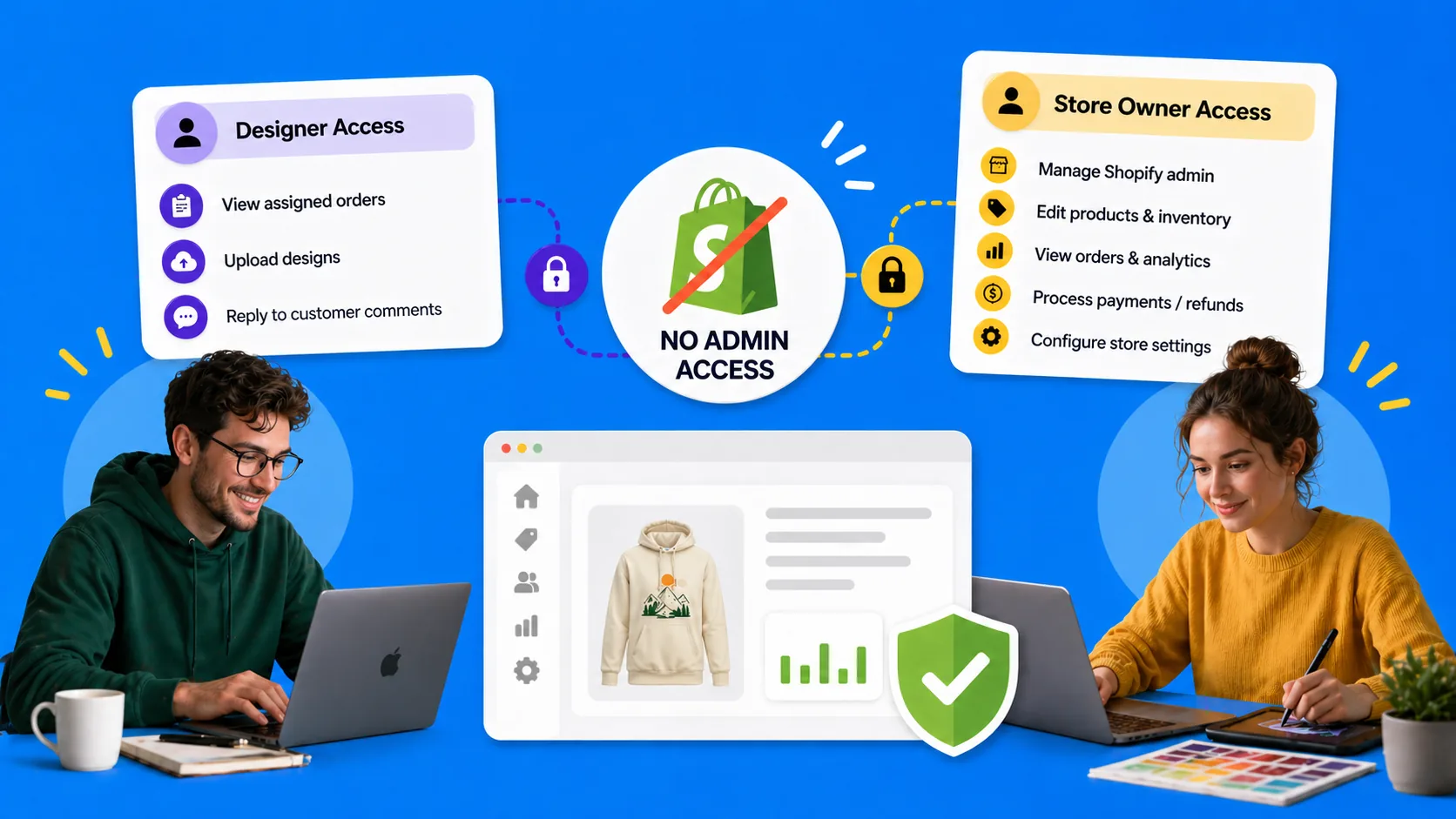
Working with Freelance Designers Without Giving Them Shopify Admin
The shortcut that always seems easier at the time
You hire a freelance designer to handle your custom Shopify orders. They need the customer's name, the line item properties, and a way to send a proof. The fastest way to make that happen is the worst one: you create a Shopify staff account with broad permissions, or worse, you just send them your own login.
It works on day one. By month three you have a freelancer with read access to your customer list, a designer who left six months ago and never got removed, and no audit trail for who actually approved what. If anything goes wrong, "the designer must have done it" is not a defensible answer.
This post is about how to keep freelancers productive without turning your Shopify admin into a shared inbox.
Why sharing Shopify admin is a bad fit for freelance design work
Shopify staff seats are designed for employees of your business, not contractors who handle one slice of your operation. The mismatch shows up in several ways.
- Permissions are too broad. Even a "limited" staff role typically has access to orders, customers, products, and apps. A freelance designer needs the line item properties on the orders assigned to them. They do not need your customer list, your revenue, or your installed apps.
- There is no per-order scoping. Shopify's permission model is store-wide. You cannot say "this designer only sees orders for the custom signs SKU." If they have orders access, they have it for everything.
- Offboarding is manual and easy to forget. When a freelancer's contract ends, you have to remember to revoke their seat. Most stores do not have a checklist for this. Old accounts sit around until the next time someone tidies up the team page.
- Audit logs blur together. When five people share an admin login, every action looks like it came from one person. When a refund or a discount happens, you cannot tell who did it.
- Cost and seat counts. Depending on your plan, staff seats are either limited or part of what you pay for. Burning one on a contractor who needs to look at three orders a week is overkill.
None of this means freelancers are untrustworthy. It means the access you have available to give them is the wrong shape for the work.
What a freelance designer actually needs
Strip the proofing job back to its essentials and the access list is small:
- Visibility into the orders assigned to them, including the customer-typed line item properties (names, dates, copy, photos) that drive the design.
- A way to upload a proof against a specific order.
- A way to see customer feedback and revision requests when the customer responds.
- A way to upload a new revision when changes are needed.
- A signal back to your team when a design is ready for the customer to review.
That is the whole job. Notice what is not on the list: customer addresses, payment details, other orders, your apps, your settings, your revenue, your discount codes, your inventory. A freelancer should not need any of that to make a proof. If your current setup gives them all of it anyway, the problem is the access tool, not the freelancer.
A workflow that keeps Shopify admin in your hands
The structure below works whether you assemble it from generic tools or use a purpose-built app. The point is the shape of the access, not the brand on the dashboard.
1. Give every freelancer their own scoped account
Each designer logs in with their own credentials, in a separate dashboard from your Shopify admin. No shared logins, no rotating passwords, no "I sent it to you in Slack" rituals. When a contract ends, you disable that one account and the rest of the team is unaffected.
2. Assign orders explicitly
Designers should only see the orders that have been assigned to them. Either you assign them by hand from your side, or the system auto-assigns based on a rule (round-robin, by tag). Either way, an assignment is a deliberate act, and the designer's view of your store is bounded by it.
3. Show only what the design requires
The order page a freelancer sees should include the order number, the customer's display name, and the line item properties needed to do the design. It should not include the customer's email, address, payment details, or order history. If your designer needs to email the customer directly, route it through your team. The principle is least access: if it is not needed for the proof, it is not on the screen.
4. Constrain what they can do
A freelancer's dashboard should let them upload designs, see customer comments, and upload revisions. It should not let them change order tags arbitrarily, edit your settings, invite other users, change billing, or touch orders that were not assigned to them.
5. Run customer-facing communication on your domain
When the customer is emailed a proof link, the email should look like it came from your store, not from a stranger. The designer gets internal notifications from the system whenever there is an update on an assigned order, so they stay in the loop without ever appearing in the customer-facing thread. The customer's relationship is still with your brand, and you keep ownership of the conversation history if the freelancer leaves.
6. Keep an audit trail per user
Every upload, every status change, every comment should record who did it. This is what lets you answer "which designer revised this proof" months later without guessing. It also means a contractor who has done good work has an actual record of it, instead of being invisible inside a shared login.
A simple example
Say you sell custom-printed packaging on Shopify and you work with two freelance designers.
- An order comes in. Auto-assignment routes it to whichever designer has the fewer active orders right now.
- The designer logs into a dashboard at a URL that has nothing to do with your Shopify admin. They see only the orders assigned to them, and on each one they see the order number, customer name, and the printed text the customer typed at checkout.
- They produce a proof and upload it against that order. The status flips to "design ready."
- Your customer is automatically emailed a link to the approval page. The email comes from your store, not from the designer.
- If the customer requests changes, the comment lands against the order. The designer sees it the next time they open their dashboard, uploads a revision, and the customer is notified again.
- When the customer approves, the order is tagged in Shopify so your fulfillment team can pick it up. The freelancer never logged into your Shopify admin to do any of this.
The freelancer did focused work. You kept your store closed.
How ApprovePro handles this
ApprovePro is built around exactly this access model. You create designer accounts directly in the app: enter their name and email, and they get an email with a link to set their own password. They do not need to install anything in Shopify, do not need a Shopify staff seat, and do not need to authenticate with your store. They log into a separate dashboard and that is it.
What a designer sees is scoped to the orders assigned to them. Their orders list filters automatically to their own assignments, with status counts for awaiting design, design ready, rejected, approved, and completed. They do not see other designers' orders, they do not see your customer list or revenue, and they do not see the settings, integrations, or billing screens that admins use.
You can assign orders manually, or turn on auto-assignment. The auto-assignment options are: route to the designer with the fewest active orders, route to a specific designer, or route based on tag rules so that, for example, "wedding-stationery" orders go to one designer and "signage" orders go to another. Each designer also gets their own reminder cadence, separate from customer reminders, so a freelancer who has not opened a design ready order in your chosen window gets nudged automatically.
Designer accounts are a Premium-and-above feature. The Starter plan is a single admin user, intended for solo merchants who do their own design work. Premium includes 3 users, Pro includes 5, and Growth includes 8, so the seat count matches the size of your design team rather than the size of your overall business.
When a freelancer's engagement ends, you deactivate their account from the same screen you created it on. Their attribution on past work stays intact. They lose access to anything new, and the rest of your team is undisturbed.
Final takeaway
The instinct to share a Shopify login with a freelancer is understandable. It is also the most expensive shortcut in custom-order operations. Give freelancers their own scoped accounts, assign work explicitly, show them only what they need to do the design, and keep customer communication on your side. The result is a setup where adding a designer is a small, safe operation and removing one is a one-click action, instead of a security event.
If you want to add freelance designers to your custom-order workflow without handing them the keys to your store, see how ApprovePro's designer accounts work alongside your Shopify orders.